Allow disk access.
So Free up space can look through your folders without asking each time.
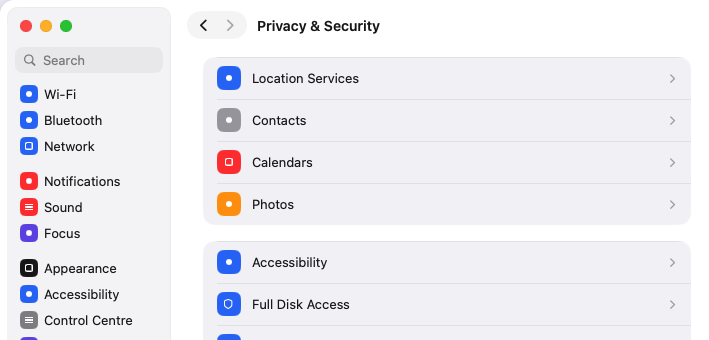
Open Full Disk Access.
Click Open System Settings in the app. It opens Privacy & Security → Full Disk Access.
Or open System Settings and go to Privacy & Security → Full Disk Access.
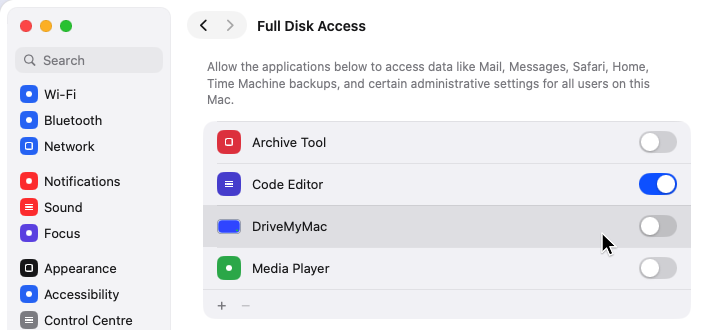
Switch on DriveMyMac.
Find DriveMyMac in the list and switch it on. macOS asks for your password or Touch ID.
If the app asks to quit and reopen, let it.
Not in the list?
Click the + button under the list, pick DriveMyMac in your Applications folder and click Open.
You can also drag DriveMyMac from Applications into the list.

Why it asks.
Free up space looks through your folders for big files you have not opened in months. With this switch on it can do that without asking you for each folder.
Nothing moves until you choose it.
To undo it, switch DriveMyMac off here again. Free up space then asks for one folder at a time.
Back to the Free up space step.
Still stuck? Write to support@drivemymac.app.