Turn on the drive.
One switch in System Settings, four short steps.
Open System Settings.
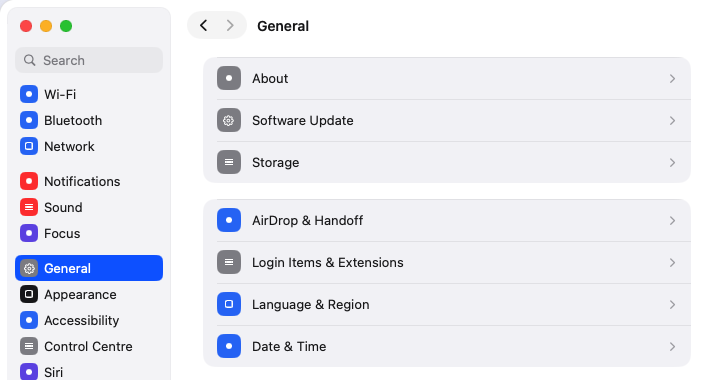
Click Open System Settings in the app. It takes you straight to Login Items & Extensions.
Or open System Settings yourself and go to General → Login Items & Extensions.
Find DriveMyMac.
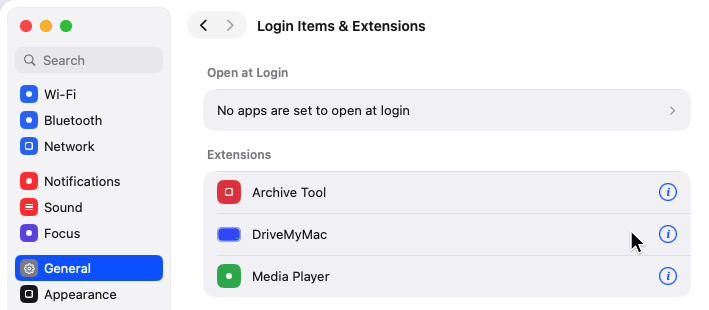
Scroll down to Extensions. Find DriveMyMac in the list and click the i button on its row.
If the list is sorted By Category, switch it to By App.
Switch on FSKit Modules.
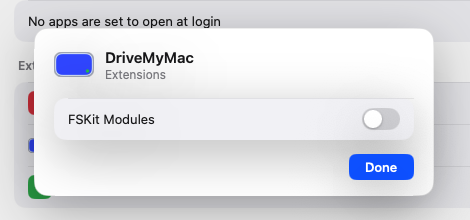
In the window that opens, switch on FSKit Modules and click Done.
That is the one switch macOS needs to show DriveMyMac as a drive in Finder.
Back to the app.
The app notices by itself and moves on to “Your drive is ready”. You do not need to click anything there.
Don't see DriveMyMac?
Quit the app and open it again. Then click Open System Settings once more.
Check that DriveMyMac is in your Applications folder. If it runs from Downloads or a disk image, drag it to Applications and open it from there.
DriveMyMac needs macOS 15.4 or newer. On older versions the switch does not exist.
Still nothing? Restart your Mac, open the app, and look again.
Next: add a storage, or allow disk access for Free up space.
Still stuck? Write to support@drivemymac.app.